Official Manual / Getting Started
Shadowrocket Setup Guide
Import a Subscription and Test Your Connection
Where should you start? Add your existing connection details to the app, choose Global Routing, connect, then confirm the result by testing real requests. This page covers the basic setup flow; see the rules manual for details about rules.
How should you use the screenshots? The screenshots below are official App Store images that show where to find items in the interface. Options may vary on your device. The server details shown in screenshots are examples, not values to copy.
STEP 01 / ADD SERVER
Add a server or import a subscription
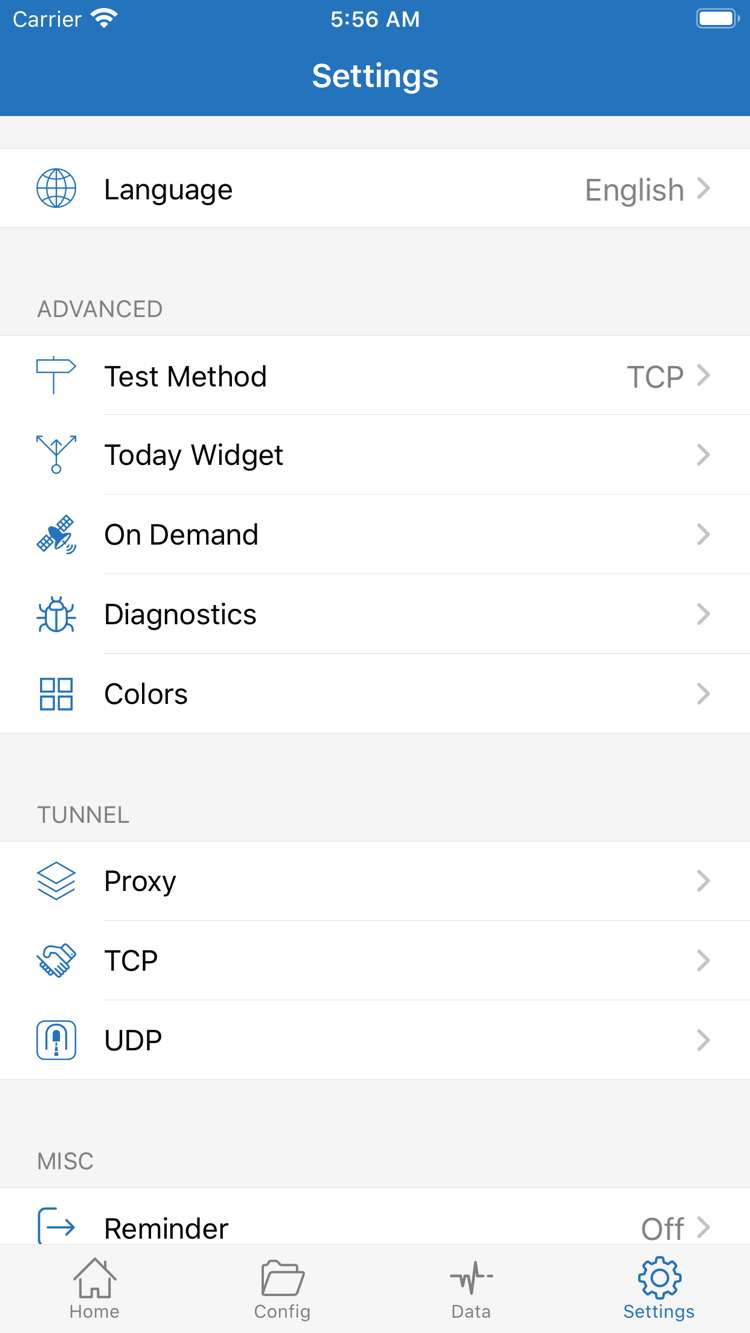
Where do you add your connection details? Go to Home and tap Add Server. Choose an option based on the details you have: import a complete subscription link with Subscribe, or enter individual server details manually using the appropriate Type. Either way, the server should appear in the SERVER list on Home. There’s no need to add the same details more than once.
Have a subscription link? Choose Subscribe
How do you add an existing subscription? In Add Server, open Type and select Subscribe. Paste your complete subscription URL into the address field, save, and wait for the contents to load. Copy the URL directly from its source, and check that it has no extra spaces, line breaks, or punctuation from a message. Query parameters are usually part of the URL. Don’t keep only the domain or remove characters just because they look long.
What should you see after saving? Return to Home and check whether the subscription’s servers appear in the list. If you see the subscription entry but no servers, check for import or update errors, confirm the URL is complete, make sure the current network can reach the subscription source, and verify that the service is still active. A successful subscription update only means the list was retrieved; it does not guarantee that every server in it can connect. Run Connectivity Test next.
Have individual server details? Select Type, then enter them
Which fields should you enter first when adding a server manually? Select the Type that matches your details, then fill in Host, Port, and the authentication fields required by that protocol. The official screenshot shows fields such as Password and Method, but the fields vary by Type; one protocol’s form is not a template for all protocols. Host is usually the server’s domain or address, and Port is its corresponding port. Check the password, UUID, TLS, and transport settings against your server details.
What if you have a QR code? Use Scan QR Code at the bottom of the page to scan a QR code for your own server, then check Type, Host, and Port after importing. Import from Cloud JSON is for supported data in that format; it is not a way to paste any subscription URL. If you’re unsure what type of details you have, check the original instructions instead of trying different Types at random.
How do you know this step is complete? Save, return to Home, and select the server you plan to use in SERVER. Confirm that it is selected. Subscription URLs and QR codes may contain credentials, so don’t share them publicly. For help with field names, see the glossary. If an update fails or the list is empty, see troubleshooting. Once the list is ready, choose how to route traffic.
STEP 02 / GLOBAL ROUTING
Choose a Global Routing mode
Does adding a server determine where all requests go? Not by itself. Return to Home, open Global Routing, and check whether Config, Proxy, or Direct is selected. The server selection determines which proxy connection is available; Global Routing determines how traffic is handled overall. Check both—the selected server alone doesn’t tell you how requests will be routed.
Config: Route traffic using the active configuration
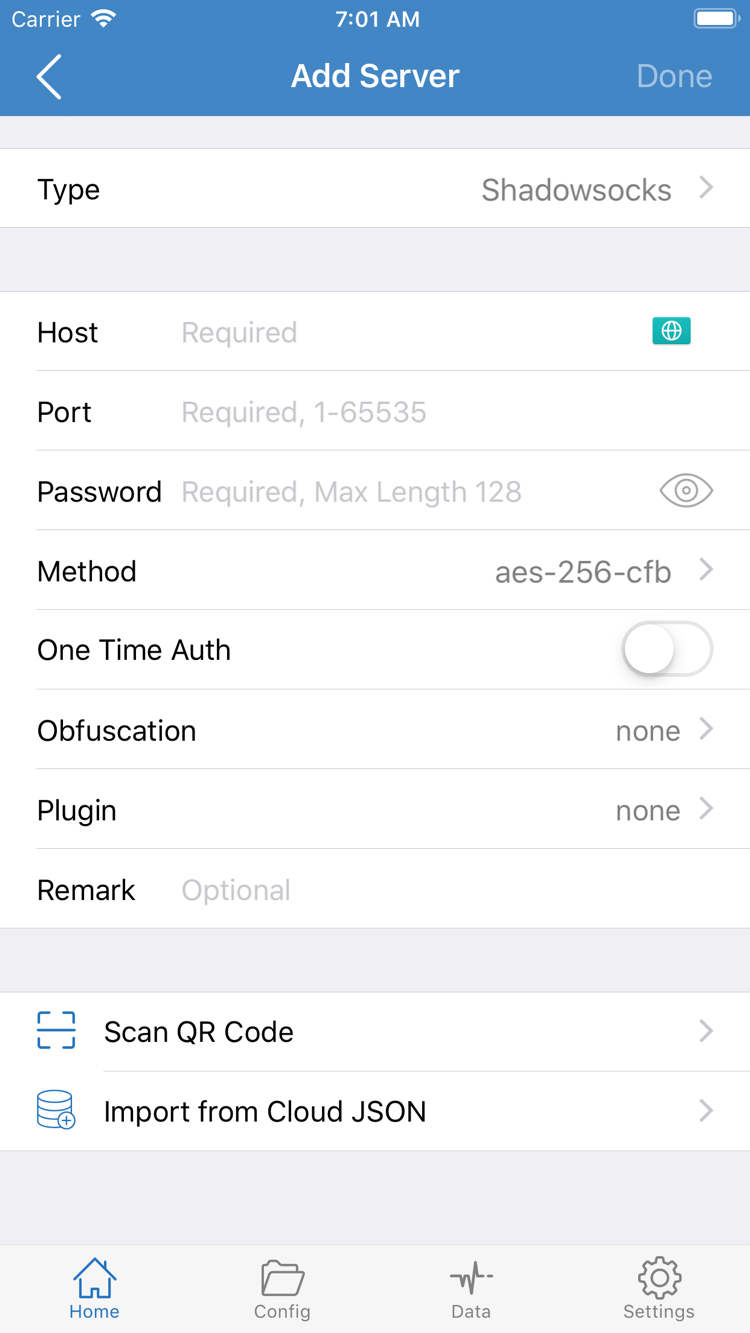
When should you choose Config? Use it when you want different requests handled according to rules. It applies the policies in the active configuration, such as DIRECT, PROXY, or REJECT. Open the Config page, confirm which configuration is active, and review its contents. The official screenshot shows sections including General, Rule, Hosts, URL Rewrite, and HTTPS Decryption, plus the Add Rule option. To get started, focus on Rule; you don’t need to change every section before your first connection.
How do rules affect the result? Rules are generally checked in order, and the policy assigned to the first matching rule is applied. Here are two examples to illustrate the structure: the first rule matches example.com and its subdomains; unmatched requests fall through to FINAL. This is not a complete configuration for everyone, and you shouldn’t replace rules that are already working with this example.
DOMAIN-SUFFIX,example.com,PROXY
FINAL,DIRECT
Proxy and Direct: Compare specific connection paths
When should you use Proxy? Temporarily select Proxy to test whether a request works through the proxy route. When should you use Direct? Select Direct to compare how the current network handles a direct connection. Selecting a server doesn’t make Direct use a proxy. Likewise, switching to Proxy won’t fix an incorrect password or an unreachable server.
Which mode should you keep when getting started? Choose Config if you have a trusted configuration and want traffic routed by rules. If you’re troubleshooting, note the current selection, then switch modes temporarily to compare results. Restore the mode that fits your needs when you’re done. For a full explanation of rule order, policies, and FINAL, see the rules manual. This page doesn’t cover every part of a configuration file. Once you’ve chosen a mode, return to Home to connect.
STEP 03 / CONNECT
Turn on the connection switch at the top of Home
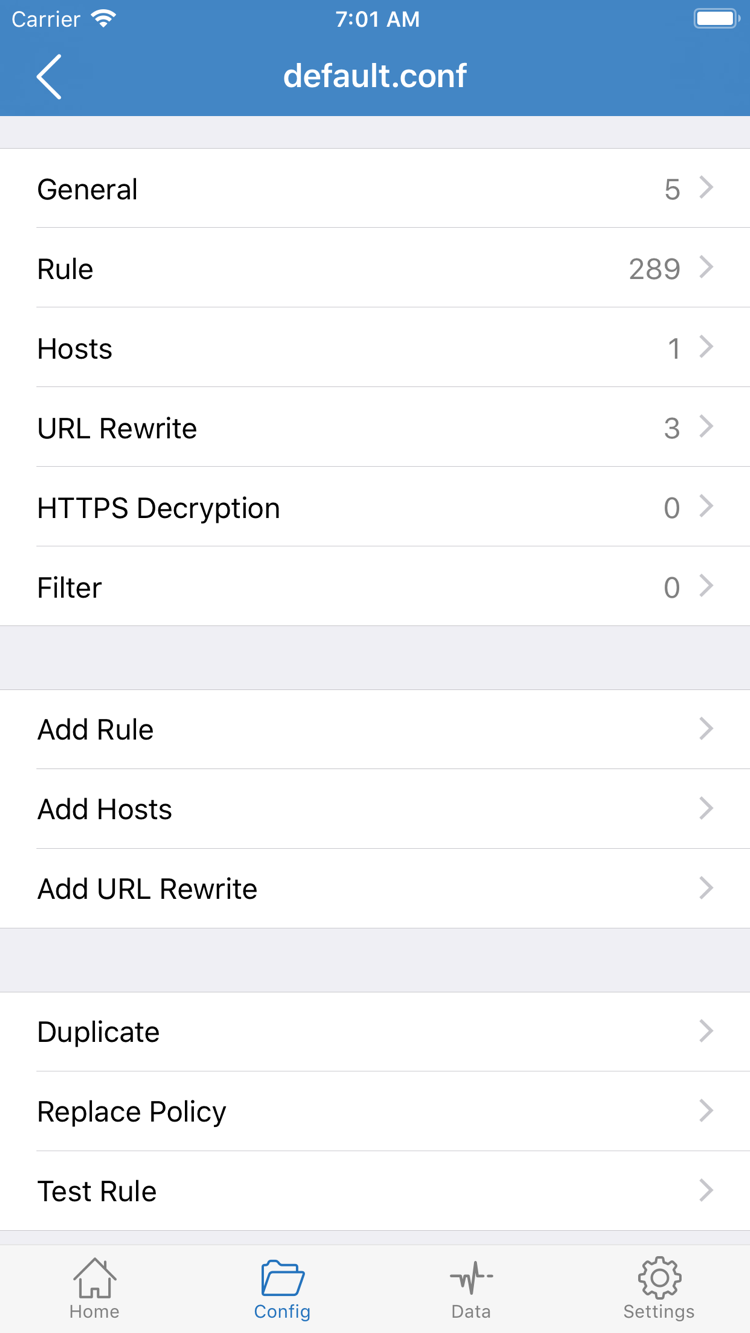
Ready to connect? First, make one last check on Home: the expected server is selected in SERVER, and Global Routing shows the mode you chose. Then turn on the switch at the top of the page. In the official screenshot, Not Connected describes the status when the screenshot was taken. It is not a server name to find or enter. Check how the status changes on your own device.
What should you do if a system prompt appears for the first time? Shadowrocket needs to add a VPN configuration to connect, and you may see a system authorization prompt the first time. Confirm that the prompt is for Shadowrocket, allow the configuration to be added, and complete any authentication required by your device. This authorizes a network configuration in the system; it does not ask for your subscription password. Don’t enter your server password into a system field for a different purpose.
What should you check after authorization? Return to Home and see whether the connection switch and status text have changed. If you canceled the prompt, the app may still be disconnected; turn on the switch again and follow the prompts. If the switch turns off immediately or keeps failing, note the error shown on screen. Don’t repeatedly trigger authorization or change several settings at once before you know what caused the problem.
Does seeing a VPN status mean access is working? No. It means the system has established a VPN connection, but that alone doesn’t confirm that remote authentication, DNS resolution, and requests to your destinations are all working. Even if Home shows a connection, continue to the next step and test actual requests. Conversely, a failed website request doesn’t necessarily mean authorization failed; the server or routing path may not be handling that request as expected.
Do iPad users need different steps? The same sequence applies: add your details, choose Global Routing, turn on the switch, and test the result. The layout may vary by device and app version, so look for the same English labels. Keep your network conditions stable while testing. Avoid switching between Wi-Fi and cellular immediately after connecting, so you can tell whether a failure is due to the configuration or a network change.
STEP 04 / VERIFY
Check results with tests and real requests
How can you tell if it’s working? Check in two stages: first, confirm basic server reachability; then check that actual requests complete as expected. On Home, run Connectivity Test and review the result, then open a website or app you need to use. Don’t assume one test number confirms everything is working, or that a page displayed from cache proves a new request followed the intended route.
Run Connectivity Test, then test the destination
What does a successful test tell you? It means the test received a response under the current test method, which is useful for an initial server check. Results depend on Test Method in Settings, your current network, and the remote response; they don’t represent the speed of every app or request. If the test returns a result but a page won’t load, check protocol authentication, DNS, and rules rather than assuming the server is fully operational.
How do you test actual access? Choose a page you need to access, make a fresh request, and check whether it loads. Then test another destination you use regularly. With Config, different destinations may match different rules, so different results aren’t necessarily a problem. If connection logs are available, check the destination, matched rule, and final policy: did requests expected to use a proxy go through PROXY, and did requests expected to connect directly go through DIRECT?
Compare routing modes by changing one variable
What should you try if a request fails in Config? Keep the same server and test destination, temporarily switch to Proxy, and run the test again. If Proxy works but Config doesn’t behave as expected, first check the active configuration and matched rule rather than changing the password. If Direct works but Proxy fails, check the proxy route and its settings. These comparisons help narrow down the issue, but one test can’t establish a single cause.
How do you know this step is complete? The connection is stable, the pages you need can make new requests successfully, and the routing mode fits your needs. Note the working combination of server, configuration, and Global Routing so you can use it as a baseline if problems arise. If you don’t need automatic connections yet, stick with manual connections. You can configure On Demand after the basic flow works, so automatic triggers don’t complicate your first tests.
STEP 05 / DIAGNOSTICS
Troubleshoot each stage in order
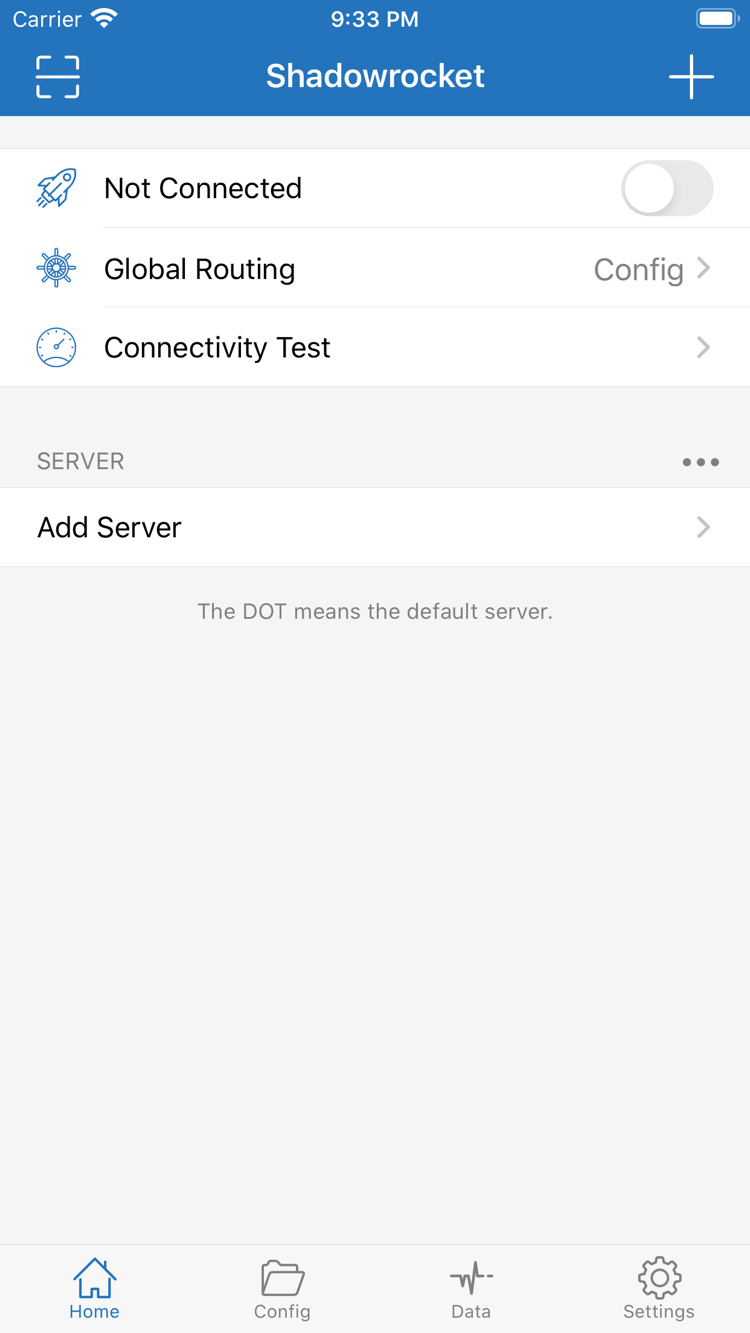
Where should you start when results aren’t as expected? Identify whether the issue occurred during import, testing, connection, or actual access, then work through the checks below in order. Open Settings to find options such as Test Method, On Demand, and Diagnostics. The screenshot helps you locate these settings; it doesn’t mean you should change them all. In particular, don’t change DNS, rules, server details, and test methods at the same time—you won’t know which change made a difference.
Import failed: Check your details and the fetch process
What if the subscription is empty or an update fails? Return to the subscription editor, check that the URL is complete, confirm it’s a subscription URL rather than an information page, and make sure it’s still active. Keep existing working entries before trying to fetch the list again; don’t delete everything when the cause is unclear. If manual setup fails, return to Add Server and check that Type matches your details, especially Port, authentication fields, TLS, and transport settings. Having every field filled in doesn’t guarantee the values are correct.
Test failed: Check the network and server separately
What if Connectivity Test gets no response? First, disconnect Shadowrocket and confirm that the device can access the internet normally. Then test another server you already have details for. If only one server fails, focus on its settings and remote status. If they all fail, check the current network and test method. If you switch between Wi-Fi and cellular, run the same test again after each switch and note the network conditions. Don’t compare results from different conditions as if they were the same.
Connected but can’t access a site? Check the mode, DNS, and rules
What if the switch is on but pages won’t load? Return to Home and check Global Routing and the selected server. Compare Proxy and Config as described above. If the main symptom is that domain names won’t resolve, check whether you changed DNS and review your most recent change first instead of adding several DNS settings at once. If only some destinations fail, check whether they match REJECT, an earlier rule, or an unexpected final policy.
How should you use Diagnostics? Review the diagnostic information for the current symptom and relate it to the stage of the request, destination, and network conditions at the time. An error entry describes one request at one point in time; it doesn’t automatically apply to later connections. Before saving it or sharing it with your service provider, hide subscription URLs, authentication details, and personal information. Keep only the errors and fields needed to investigate the issue.
Repeated automatic connections: Check On Demand
Why does it reconnect after you turn it off manually? In Settings, check whether On Demand is enabled and whether its trigger conditions match your current network. While troubleshooting, temporarily disable automatic triggers and reproduce the issue using the manual switch. Restore the setting for your intended use afterward. If you recently imported or changed a configuration, note what changed and try to return to the last combination you verified was working. Then add changes one at a time.
What should you do if it still fails? Note four details: the step where it failed, the current Global Routing mode, the Connectivity Test result, and what happens with the actual destination. Use these details to find a match in Troubleshooting—it’s more useful than saying only that it won’t connect. For rule priority and configuration structure, see the rules manual. If you’re unsure about a field, check the glossary. Don’t post a complete subscription URL or authentication details publicly.