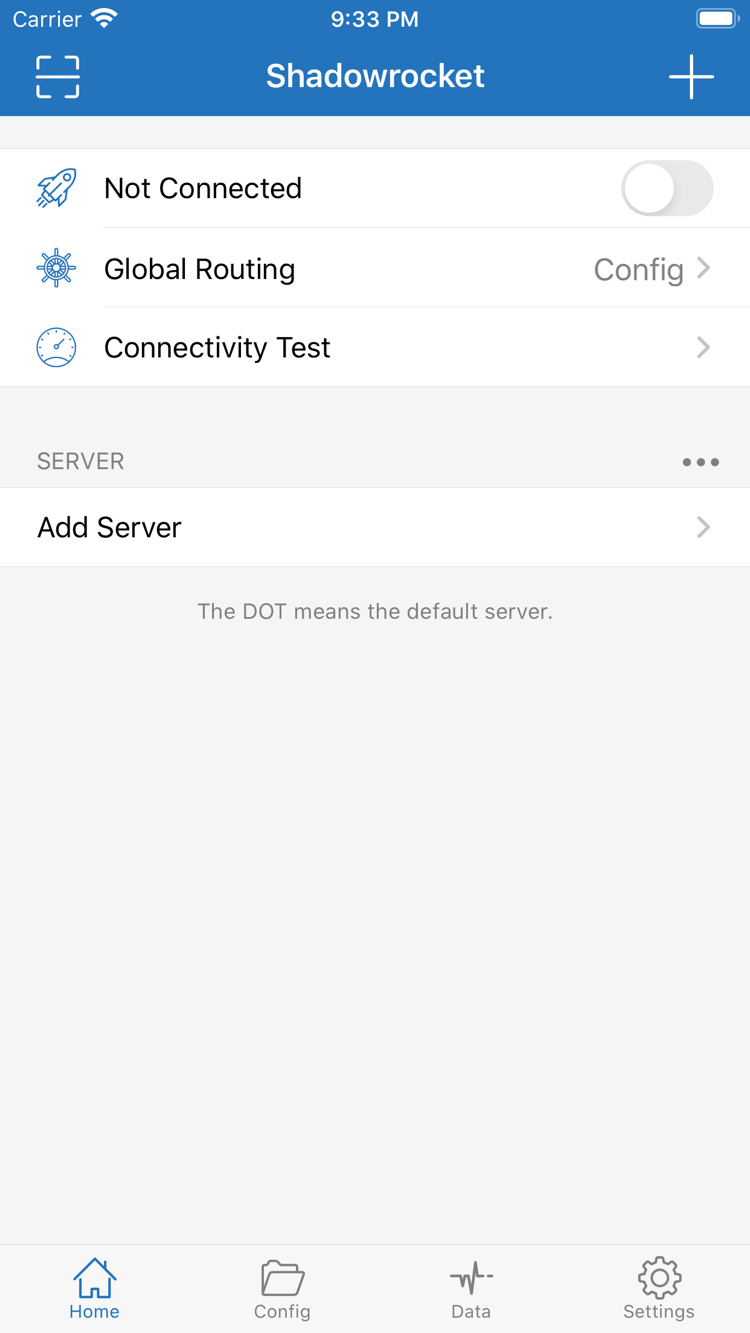
Getting started? First verify the official App Store listing, then import your existing connection details for iOS / iPadOS. The client is a one-time purchase; configure rules and settings as needed.
932747118App Store app ID
One-time purchaseSee the App Store listing for pricing
iPhonePurchase availability for iPad is shown in the App Store listing
Where can you find each setting? Browse by feature, then check the details against your connection information.
Rules: choose a policy for each destination
What does this feature do? It lets you choose whether different requests use a proxy or connect directly.
Rules select a policy based on conditions such as domain or address. They are checked in the order listed in the configuration, and the policy for the first matching rule is applied. Select and enable a configuration in Config, then set Global Routing on Home to Config to route traffic according to those rules. Put specific rules before broader ones, with FINAL at the end. The snippet on the right illustrates syntax only; whether PROXY connects depends on the selected server and policy settings. After making changes, check which rule matches your requests—don't rely on the connection toggle alone.
What does this feature do? Does a network change require you to reconnect manually?
On Demand triggers connections when specified conditions are met. It does not fix an unavailable server or extend the validity of a connection service. In Settings, open On Demand, review the available conditions, and configure them for how you use Wi-Fi and cellular data. First confirm that a manual connection works, then enable on-demand behavior. Switch networks to verify that the conditions trigger as expected. If the connection keeps reconnecting during troubleshooting, check these conditions and the system VPN status rather than repeatedly toggling Home.
Settings›
On Demand›
Protocols: check connection parameters
What does this feature do? Which Type should you choose for existing server details?
Shadowrocket supports protocols including Shadowsocks, VMess, VLESS, Trojan, HTTP, SOCKS5, WireGuard, and Hysteria2. In Add Server, choose the Type that matches your existing service details, then fill in the corresponding fields. Protocols with similar names are not interchangeable. The host, port, authentication details, transport, and TLS options must be consistent; an incorrect value in any field can prevent a connection. Check imported parameters too. Confirm the details provided by your service before changing client settings.
What does this feature do? How can you import and update your server entries in one place?
A subscription URL provides server entry details; it is not proof of an app purchase. If you already have a subscription, set Type to Subscribe in Add Server, enter the full URL, and save it. Then update the subscription to check the imported entries. Query parameters in the URL may be needed for authentication, so copy the entire address, including its ending. If an update fails, check that the URL is complete, the service is valid, and the current network can reach it. A successful update only means the list was retrieved; select an available entry and test it. This site does not provide subscription URLs or connection services.
Add Server›
TypeSubscribe
https://example.com/sub?token=xxxx
For demonstration only. Replace with your own valid URL.
Config: manage routing configurations
What does this feature do? Where do rules and network settings go, apart from the server list?
Config manages configuration files. Rules, Host mappings, and other configuration content are separate from server entries. If you already have a configuration, check its source and scope before selecting it. Keep a copy of the original before editing so you can undo changes. Change one type of setting at a time, then confirm that the correct file is enabled. If you use iCloud to sync related content, check the sync status and selected configuration on the destination device. A completed sync does not mean the configuration is active, and a server subscription is not a complete routing configuration.
General›
Rule›
Hosts›
URL Rewrite›
Diagnostics: troubleshoot connections layer by layer
What does this feature do? What should you check first when connected but webpages won't load?
First, use Connectivity Test on Home to check the server response. Then confirm Global Routing, the active configuration, and DNS settings. Different test methods measure different things, and a test result does not guarantee that every site is reachable. Diagnostics in Settings can help narrow down an issue. Data shows traffic usage, but traffic totals alone do not prove that requests followed the expected policy. When reproducing a problem, note the network type, destination, and settings changed; change one variable at a time. Remove subscription URLs and authentication details before sharing diagnostics.
Connectivity Test›
Test Method›
Diagnostics›
Data›
Which Global Routing option should I choose?
First distinguish between routing according to a configuration and directing traffic uniformly. Config applies the rules in the active configuration; Proxy sends requests through the selected proxy; Direct connects directly. These are routing modes, not server protocols or subscription types. For rule-based routing, check that Config is selected and the intended configuration is active. The presence of a configuration file alone does not mean its rules are in effect.
How can you verify a change? Choose a specific test destination, note the current Global Routing mode and configuration, then change one setting and test again. If the destination works under Proxy but not Config, check the rules, policies, and DNS instead of immediately reimporting servers. If neither mode works, check the server parameters, current network, and service validity first. For step-by-step instructions, see the first connection guide. For rule scope and order, see the rules and configuration reference.
Devices and App Store
Getting Shadowrocket on iPhone and iPad
Which device are you using? See the relevant guide. Purchase availability and system requirements are as listed on the App Store page.
Purchase history can be checked, but connections must be verified on each device. The App Store listing shows whether a purchase covers iPhone and iPad. If you used the same Apple ID, check the product page and your purchased items to see the available options; don't rely on whether an app icon is already on your Home Screen to decide if you need to buy it again. If the App Store shows something unexpected, first check the account currently used for purchases and its purchase history, then troubleshoot installation.
After installation, check your existing subscriptions, server entries, and active configuration on each device. Downloading the app does not automatically transfer all settings to another device. Even when using sync, verify the selected items on the destination device. Check whether your connection service limits simultaneous use; those terms are determined by the service, not the client purchase. For the first test, use one known working entry and avoid changing subscriptions, rules, and DNS at the same time.
Shadowrocket is also available on Mac and Apple TV from the same App Store. Check the store's compatibility listing for system requirements and purchase availability.
What should you check before buying? Cross-check the developer, official icon, and app ID. Don't rely on an abbreviated name in search results.
Developer Shadow Launch Technology Limited
App ID 932747118
One-time purchase
Found an app with the same name? How do you confirm it's the right one?
The name can help you find the app, but it is not verification. Open the Shadowrocket product page and check that the developer is Shadow Launch Technology Limited, compare the app icon with the official icon in this site's header, and check for id932747118 in the link. All three details should match. Check the price, compatibility, and purchase options on that same product page. Don't mistake another item in the search results for the app you want.
Where can you verify it? Start with this site's App Store verification guide, check each item on the list, then open the product page. Shadowrocket is a closed-source commercial app, distributed and updated through the App Store. This manual explains the steps and verifiable details; it cannot replace the purchase record in the App Store. Don't skip other checks just because an icon looks similar or the name contains “rocket.”
Can't find it in the App Store, or does the listing look different? What should you check first?
First distinguish App Store availability from device compatibility. Check the account and storefront currently used in the App Store, make sure you're viewing the correct product page, then review its compatibility section and system requirements. Currency, purchase availability, and the actions shown on a device may vary by storefront; the current App Store page is authoritative. System requirements are not listed here because they can change. Confirm whether your device can install the app using the listing shown in its App Store.
If you purchased it before, check your purchase history first. “Can't find it in search” does not necessarily mean the purchase is no longer valid. Find your purchased items from the App Store account menu and compare the app name and developer. For payment or billing questions, refer to the App Store order details. Server lists, subscription update results, and connection toggles in the client are separate from whether an App Store purchase was completed.
What does the one-time purchase include?
The purchase covers use of the client. The U.S. price shown for reference is $2.99; prices are displayed in local currency in other storefronts. The amount charged is shown on the App Store purchase confirmation screen. The client purchase does not include a connection service. Buying the app does not create a server or provide subscription URLs, authentication details, or service validity. This site does not provide servers or subscriptions; all guides assume you already have your own subscription or server details.
Installed the app but the list is empty? First check whether you already have connection details. If you have a subscription URL, import it using Subscribe. If you have details for a single server, choose the matching Type in Add Server and enter them. The app purchase, subscription validity, and rule configuration are separate concerns. Checking them separately helps avoid buying the client again to fix an unavailable server and makes it easier to identify where the problem occurs.
What should you do when switching devices, reinstalling, or updating?
Restore the app first, then check your settings. When switching devices or reinstalling, use the Apple ID used for the purchase to find the app in the App Store and check the redownload option. Whether another payment is required depends on the purchase options shown in the store. Redownloading the app does not necessarily restore existing server details or custom rules. After installation, check the entries on Home, the selected item in Config, and connection-related options in Settings.
Updates are delivered through the App Store; check the store's update history for details. Before changing a configuration, save a copy you can restore. After restoring or syncing, test one known behavior before enabling other settings. If results differ between devices, note each device's network, Global Routing mode, and active configuration, then compare them one by one. This is more useful than checking only whether a toggle is on. For Family Sharing or purchase availability on other devices, refer to the product page as currently listed.
Which common question should you check first?
The subscription updated successfully. Why can't I connect?
A successful update means the list was retrieved, not that every server is usable. Select an entry and run Connectivity Test, then check service validity, parameters, and your current network. Next, check Global Routing and the active configuration. Don't change several settings at once before identifying the source of the problem. See subscription and import Q&A for a step-by-step diagnosis.
Do Shadowrocket latency test results reflect real-world browsing performance?
Not on their own. Test Method affects how the test runs, and results vary with the current network and test destination. Compare results under the same conditions, then verify with a request to the destination you actually need. A test response and a correctly matched rule are two different things. If you're connected but access fails, check the server, mode, DNS, and rules in that order. See rules and troubleshooting Q&A.
Should you change DNS to a fixed value first?
Don't apply a setting without considering the current configuration. Check DNS in the active configuration and identify the actual symptoms. Distinguish a DNS resolution failure from a server connection failure before making changes. Save the original value, change one setting at a time, and repeat the same test. If rules depend on domains, check the request records too. For terminology, see DNS and networking terms.
Does approving the VPN configuration mean setup is complete?
Approval only allows the client to create the relevant system network configuration. It does not verify the server, subscription, or rules. Return to the app and check the selected server, Global Routing, and connection status, then test a specific destination. Follow each step the first time, including checking the import result and verifying actual access. See the first connection guide after installation.
Topic guides
Rules and connection troubleshooting
What should you check after completing the basics? Go to the guide for the issue you're experiencing; there's no need to change every setting at once.
If the app shows connected but webpages won't load, first check server connectivity, then verify Global Routing, DNS settings, and rule matches to narrow down the cause step by step.
Use rule snippets to understand how matching works for domains, addresses, and final policies. Learn why rules are checked from top to bottom and how broader rules can affect later matches.
Start with system battery usage and network behavior to understand On Demand conditions. Test them with your own Wi-Fi and cellular usage rather than relying on the background activity label alone.